How to Use Merch Informer’s Bulk Design Uploader to Save Time
For Amazon on Demand sellers—especially those scaling up with dozens or even hundreds of designs—time is your most valuable resource. Manually uploading individual designs can quickly become a bottleneck, especially if you want to build a catalog that spans T-shirts, hoodies, tote bags, PopSockets, and more.
This is where Merch Informer’s Bulk Design Uploader comes in. With the ability to mass-upload products using a structured CSV system, you can automate your listing workflow, increase your output, and focus on what matters most: creative strategy and market research.
In this article, we’ll walk through how to use the Bulk Design Uploader effectively, explore advanced tips to streamline your process, and show you how to scale your Merch by Amazon business like a pro.
Why Use Bulk Uploading?
Most Amazon on Demand sellers start with one product: the standard T-shirt. But success comes from building out your catalog—more product types, more niches, more designs.
Here’s why bulk uploading matters:
- Saves hours per week vs. manual uploading.
- Reduces errors in listing descriptions, keywords, and pricing.
- Improves speed to market during seasonal trends or viral moments.
- Makes A/B testing easier, with structured, trackable uploads.
Instead of uploading 10 listings by hand in a few hours, you could upload 100+ listings in one go, with customized variations across multiple products, colors, and sizes.
How the Merch Informer Bulk Uploader Works
Merch Informer’s Bulk Design Uploader operates on a CSV-based system that allows you to preload:
- Design files
- Titles, bullet points, descriptions
- Pricing
- Product type and colors
Once everything is organized, you simply launch the uploader, and it takes care of the rest.
Supported Amazon Products
You can bulk upload listings for the following Amazon on Demand products:
- T-shirts (standard and premium)
- Long sleeve shirts
- Pullover hoodies
- Sweatshirts
- Tank tops
- V-neck shirts
- Raglans
- Zip hoodies
- PopSockets
- Tote bags
- Throw pillows
- Phone cases
Each product type can have specific rules (e.g., image dimensions, printable areas), and Merch Informer helps you match those automatically.
Step-by-Step: How to Use the Bulk Design Uploader
Step 1: Prepare Your Designs
Before you upload, you need your designs ready:
- Use transparent PNG files at the correct dimensions.
- Keep file names descriptive and matched to your listing data (e.g., cat_dad_tshirt.png).
If you want to save time, you can batch-export your designs from design tools (like Photoshop, Canva, or AI-based tools like Kittl), as long as they match the Amazon specs.
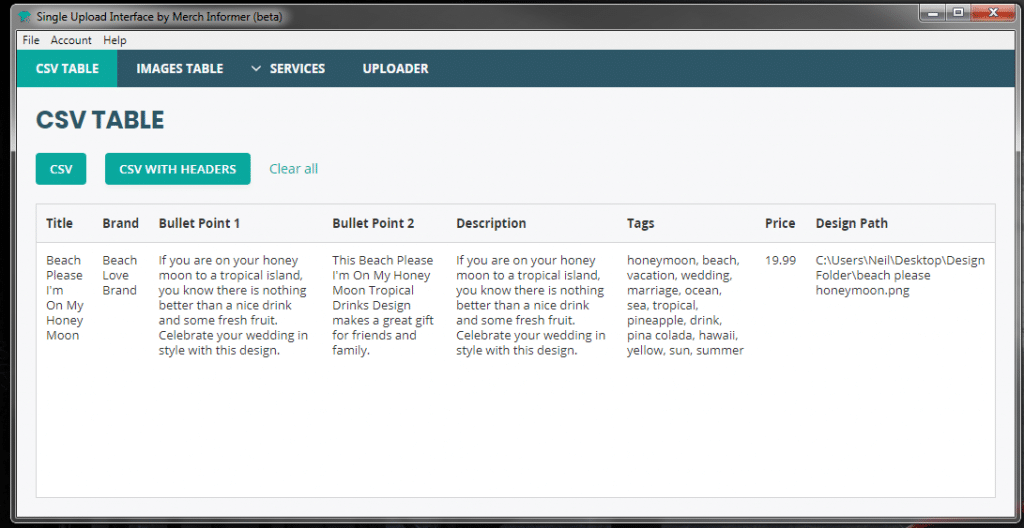
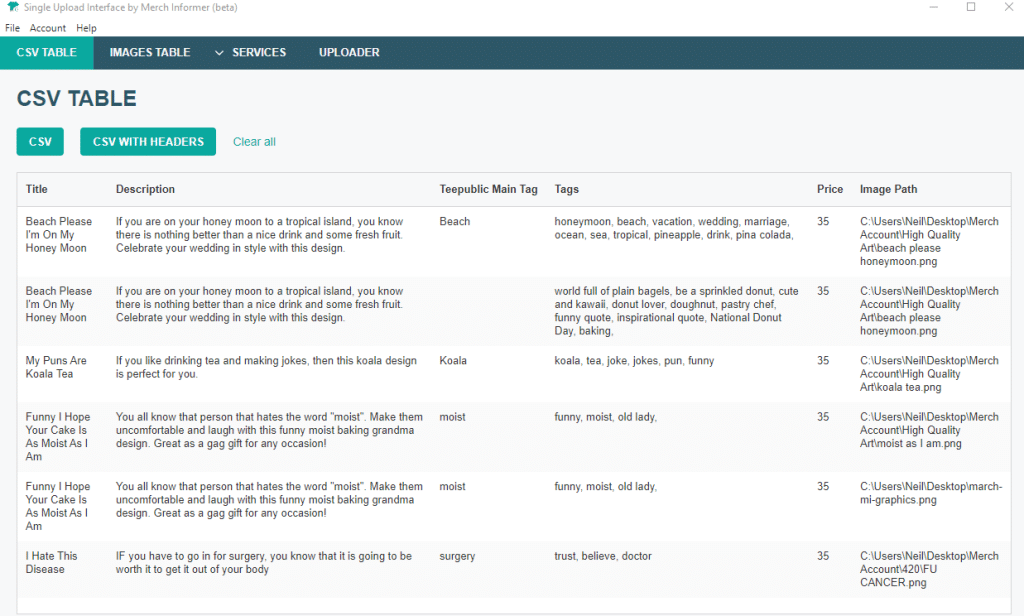
Step 2: Set Up Your CSV File
Merch Informer provides a CSV template that includes fields such as:
- Title
- Brand
- Bullet Point 1 & 2
- Description
- Price
- Product Type
- Colors
- Fit type (men/women/youth)
- Marketplace (e.g., US, UK, DE)
Each row represents one product listing. You can use Excel or Google Sheets to prepare your CSV.
Pro Tip: Use the Merch Informer Product Research tool to find high-performing keywords and plug them directly into your bullet points and titles.
Step 3: Link Your Designs
The uploader requires that your image files match the listing rows in the CSV. A common strategy is to:
- Save designs in a single folder.
- Name each file exactly as referenced in the CSV.
- Use the same design across multiple products (e.g., T-shirt, hoodie, tote bag) with separate rows.
This allows you to reuse one design across several products without duplication errors.
Step 4: Launch the Uploader
Once your CSV and images are ready:
- Open the Merch Informer Bulk Uploader.
- Select your prepared CSV file.
- Point to your image folder.
- Review your upload queue.
- Start the upload process!
The uploader will sequentially submit each product, filling in all details and uploading the correct image.
Step 5: Monitor and Troubleshoot
Merch Informer logs upload statuses:
- ✅ Successful uploads
- ❌ Errors (e.g., missing fields, sizing issues)
You can download an error report to correct problems quickly.
Advanced Tips to Save Time and Improve Output
1. Use Templates for Faster Creation
If you’re targeting a single niche (e.g., Halloween), create a CSV master template and simply swap out product names, colors, and pricing per collection.
2. Automate Titles and Tags
Use spreadsheet formulas to build dynamic content:
- “Funny ” & A2 & ” Shirt for Dog Lovers” becomes “Funny Halloween Shirt for Dog Lovers”
- Helps you scale listings while maintaining SEO quality
3. Track What You Upload
Keep a tracker spreadsheet:
- Product name
- Date uploaded
- Niche
- Product types (T-shirt, hoodie, etc.)
- Performance data (sales, CTR)
This becomes critical when you reach hundreds or thousands of listings.
Case Study: Bulk Uploading a Themed Collection
Let’s walk through a real-world use case:
Scenario: Launching a Summer Beach Collection
You have:
- 10 beach-themed designs (sunsets, ocean quotes, vacation humor)
- You want them available on T-shirts, tank tops, and tote bags
- Target launch before July 4th holiday
Steps:
- Research keywords using Merch Informer’s Trend Hunter and Keyword Finder tools
- Design graphics in 4500x5400px resolution
- Set up CSV with:
- Three rows per design (one for each product)
- Keywords in title: “Beach Life Shirt”, “Ocean Vibes Tank”
- Bullet Points: mention vacation, comfort, summer styles
- Batch export PNGs into a folder
- Run the uploader
- Review errors, re-upload any failures
Time spent: ~3 hours
Listings uploaded: 30+
Time saved vs. manual upload: 8+ hours
Seasonal Strategies with Bulk Uploading
One of the most powerful uses of the Bulk Uploader is seasonal scaling. Use the uploader to:
- Prep fall collections in August
- Drop holiday designs in October
- Launch New Year themes in December
By scheduling uploads in advance, you stay ahead of trends and capitalize on early shoppers.
Common Pitfalls and How to Avoid Them
| Pitfall | Fix |
|---|---|
| Misnamed image files | Always match file names to CSV rows |
| Blank fields | Double-check CSV before upload |
| Wrong image dimensions | Use Merch Informer’s built-in size guides |
| Upload limits hit | Upload in batches and monitor your Amazon tier limits |
Wrapping Up: More Designs, Less Work
Merch Informer’s Bulk Design Uploader is a powerful time-saver that lets you scale your Merch by Amazon business efficiently and professionally. Instead of getting bogged down in individual uploads, you can focus on strategy, niche research, and seasonal planning—the real levers for growth.
✅ Prepare your templates
✅ Batch your artwork
✅ Optimize your listings
✅ Upload with speed and accuracy
With just a few hours of setup, you can upload dozens—or hundreds—of listings in a day, making bulk design one of the most profitable scaling tactics in the Amazon on Demand space.